Rolec EV
Go to the Rolec EV Connect app.
Open the Rolec EV Connect app. If it's your first time using the app, it will ask you to scan the charger QR code located in the back of the Rolec setup guide or inside the charger.
Navigate to: Configure your chargepoint > Back Office
In the app menu, navigate to Configure your chargepoint, then select Back Office.
Select your back office: choose "Custom"
From the back office options, select "Custom" to enter a manual OCPP backend URL.
Copy the Splash URL below.
wss://cpms.splashrenewable.co.uk/
Enter the URL copied from Splash.
Paste the Splash URL into the custom back office URL field.
Click "Set".
Tap the Set button to save the OCPP backend configuration.
Open Splash Share.
Go to My chargers → Tap "Add new charger"
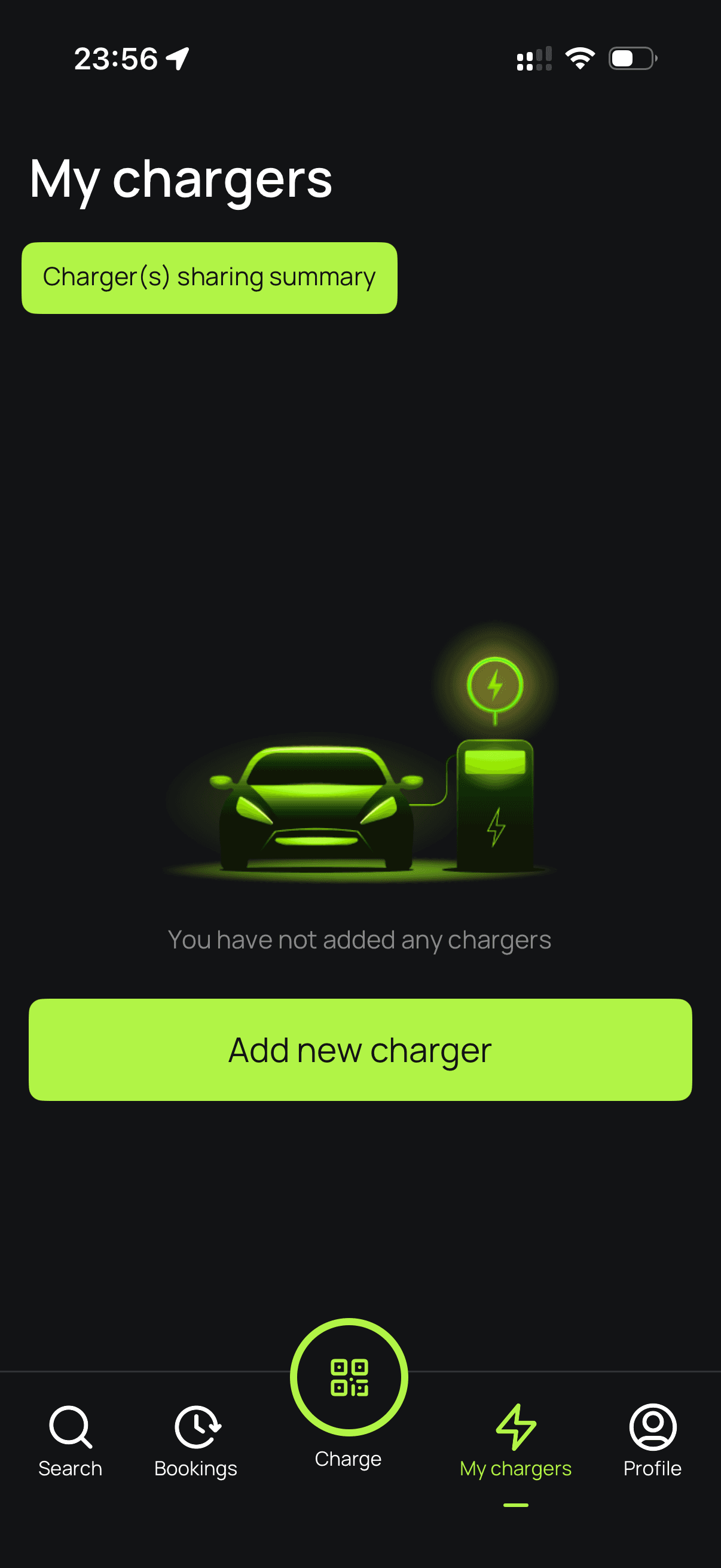
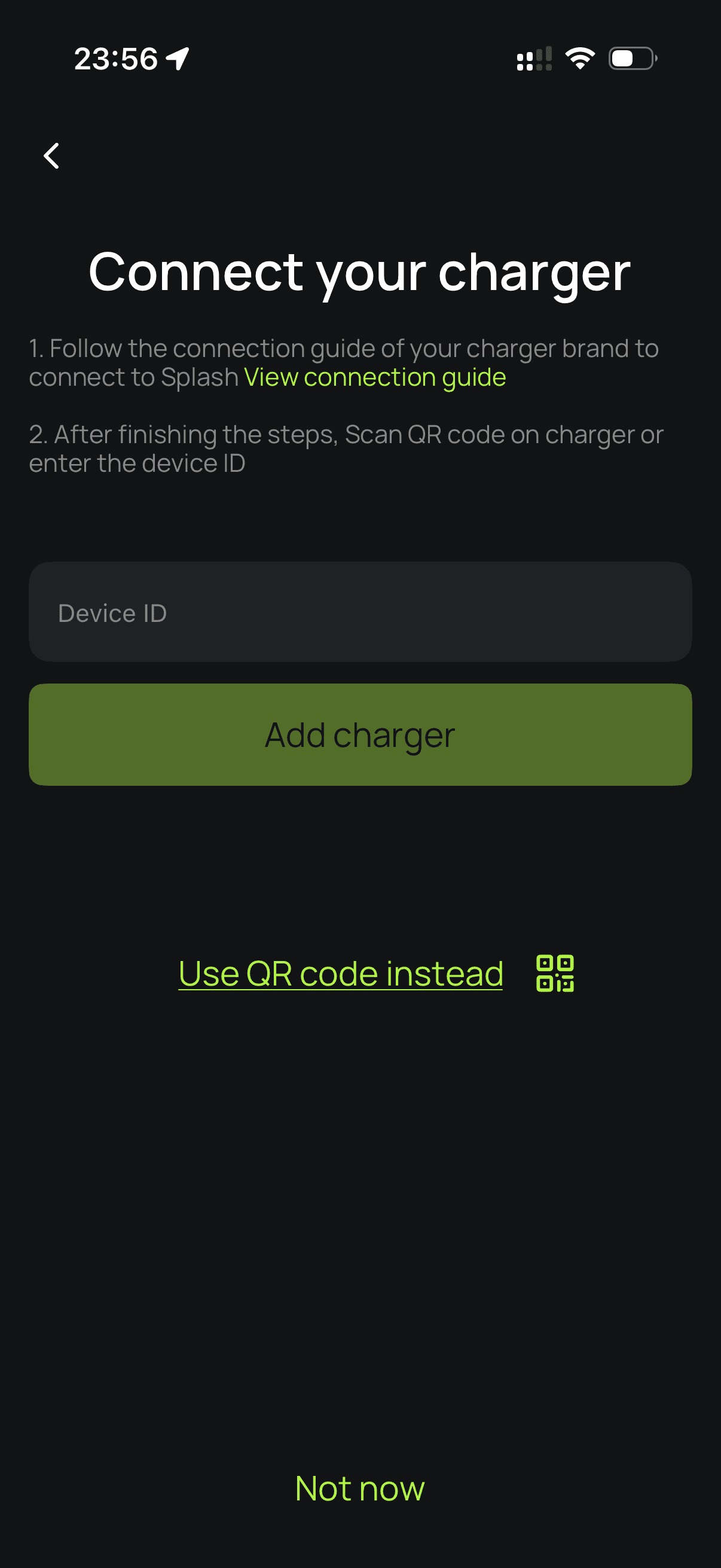
Enter your charger ID.
Please don't use the QR scanner — manually enter your Rolec EV Connect charger's serial number to proceed.
Set up your charger.
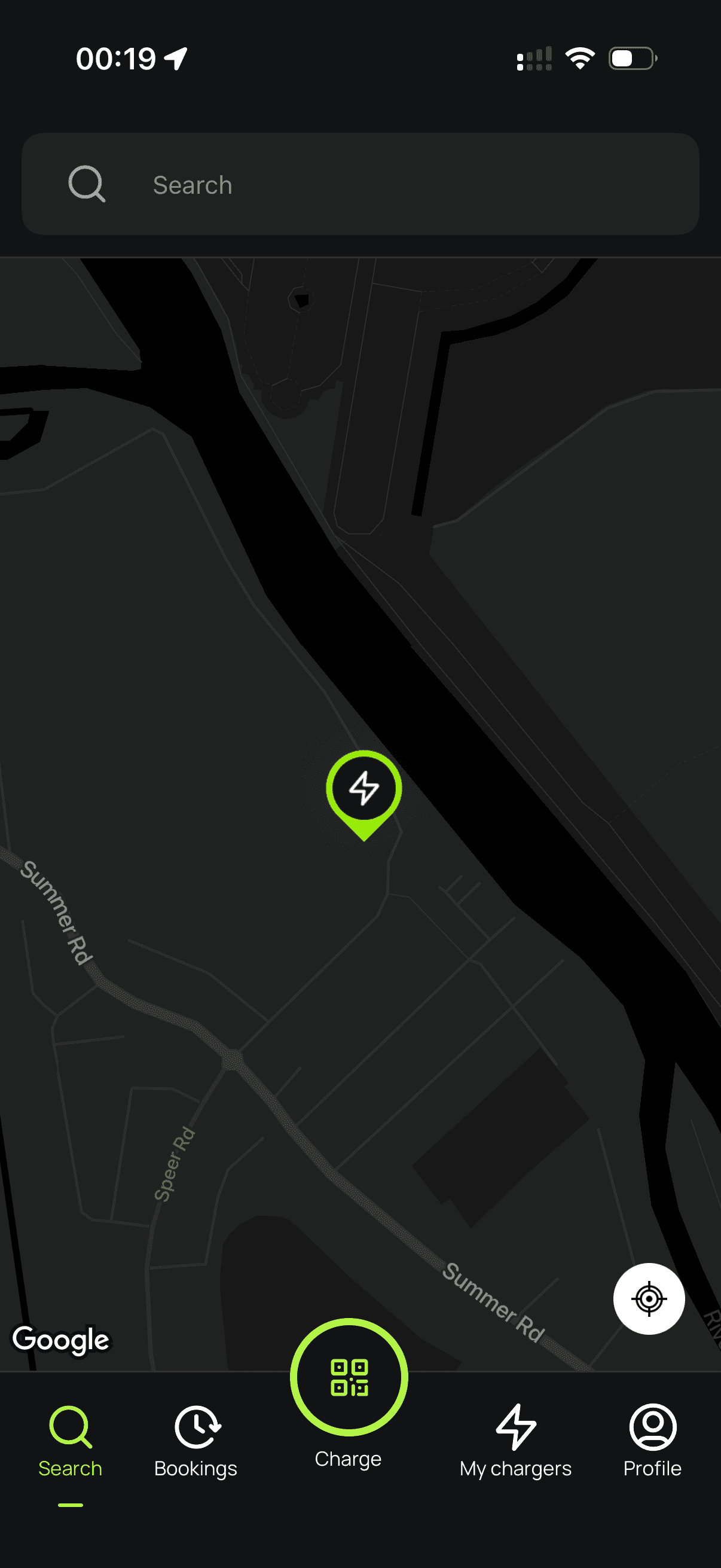
Follow the instructions to finish setting up your charger. After a minute, it should appear on the map. Until your Splash QR sticker is on the charger, guests can't actually use it — that's how they start a session. Send us a screenshot of your charger on the map via the "Need help?" link below, and we'll get a sticker in the post to you.