Zeeda
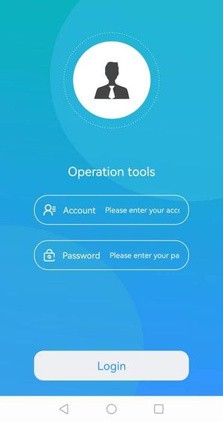
Download and log in to the Zhida operation tool.
On an Android phone or tablet, go to https://www.pgyer.com/XsXsff to download the Zhida operation tool (Android-only — no iOS version). Open it and log in with Account: SRT and Password: 123@Shzhida.com
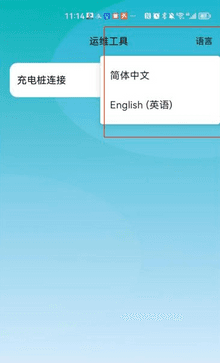
Switch the language to English.
If the operation tool is displayed in Chinese, click the small text "语言" (Language) to switch to English.
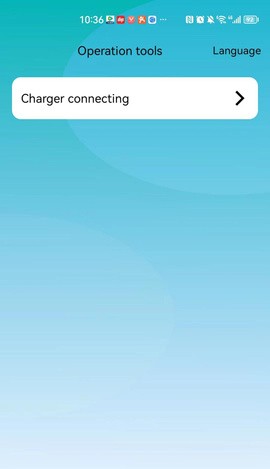
Click "Charger connecting" to proceed.
On the main screen, tap "Charger connecting" to begin the charger setup process.
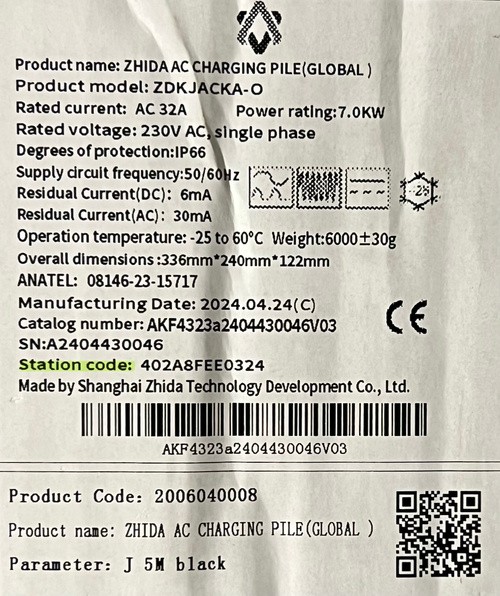
Find your Station code and select it.
Find the Station code on the paper label outside your Zhida EV charger box. In the operation tool, you should see the same code under "Available equipment" — tap it to proceed.
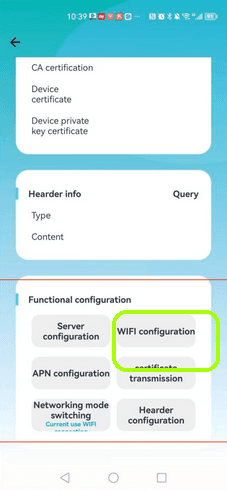
Open WIFI configuration.
Scroll down to the bottom of the charger settings and click "WIFI configuration".
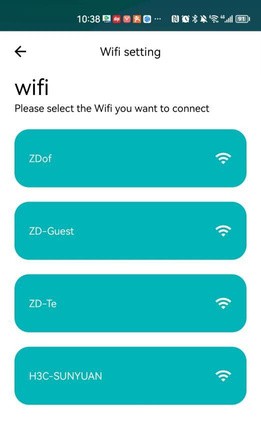
Connect the charger to your Wi-Fi.
Select your home Wi-Fi network and enter the password to connect the charger to your Wi-Fi.
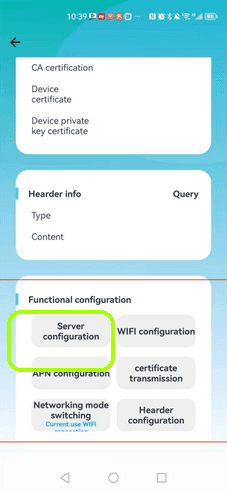
Go to Server configuration.
Go back to the previous screen and click "Server configuration".
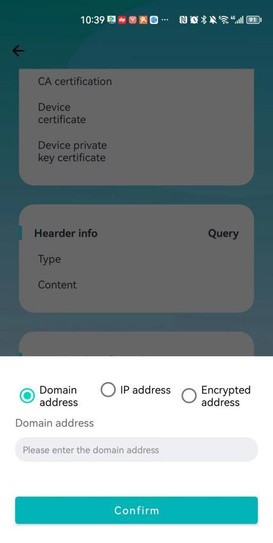
Enter the Splash OCPP URL.
Make sure to select "Encrypted address" (not Domain address or IP address). Enter the following URL and click "Confirm": wss://cpms.splashrenewable.co.uk/
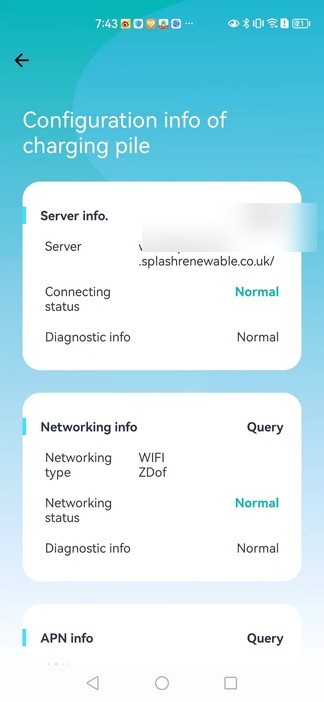
Verify the connection is successful.
If the connection is successful, the same URL from the previous step will show next to "Server", and the status will be "Normal".
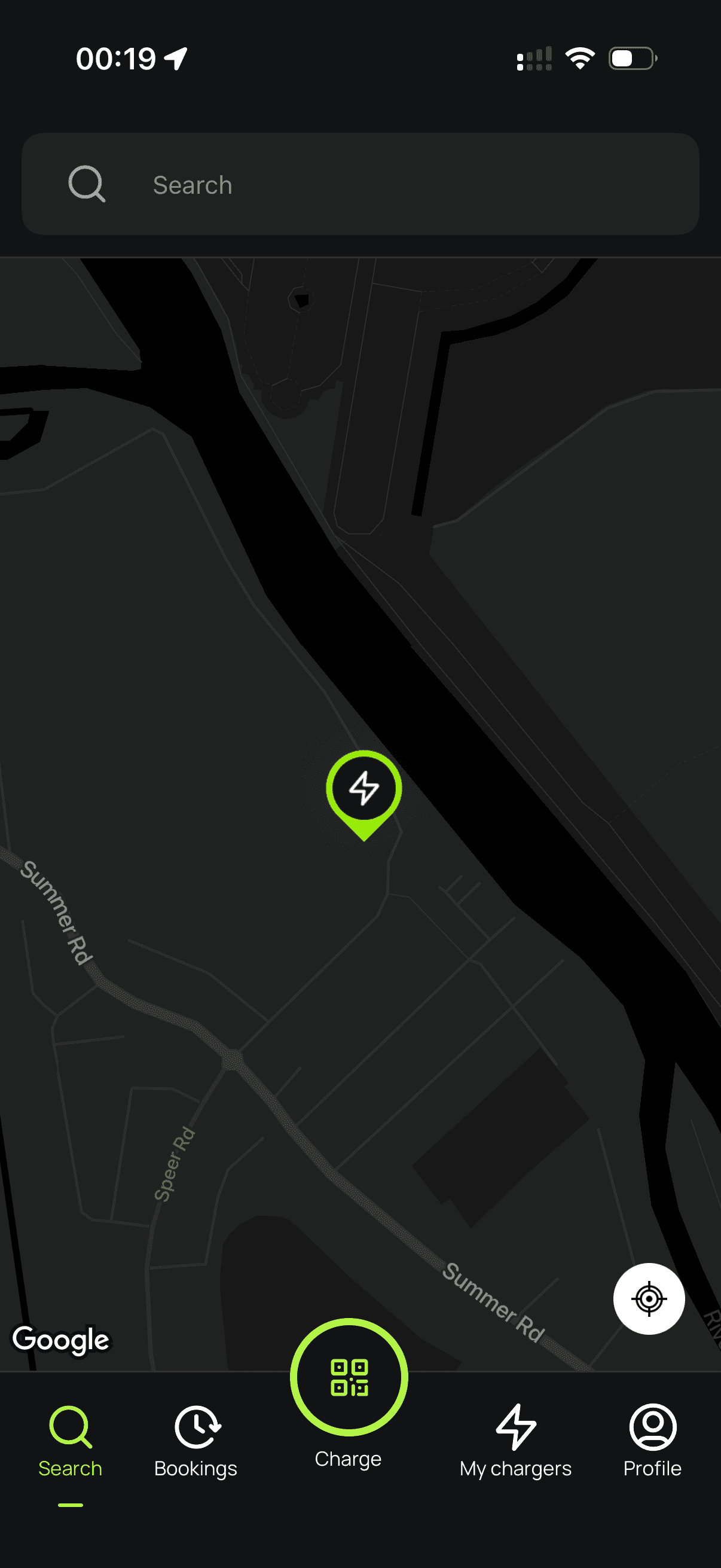
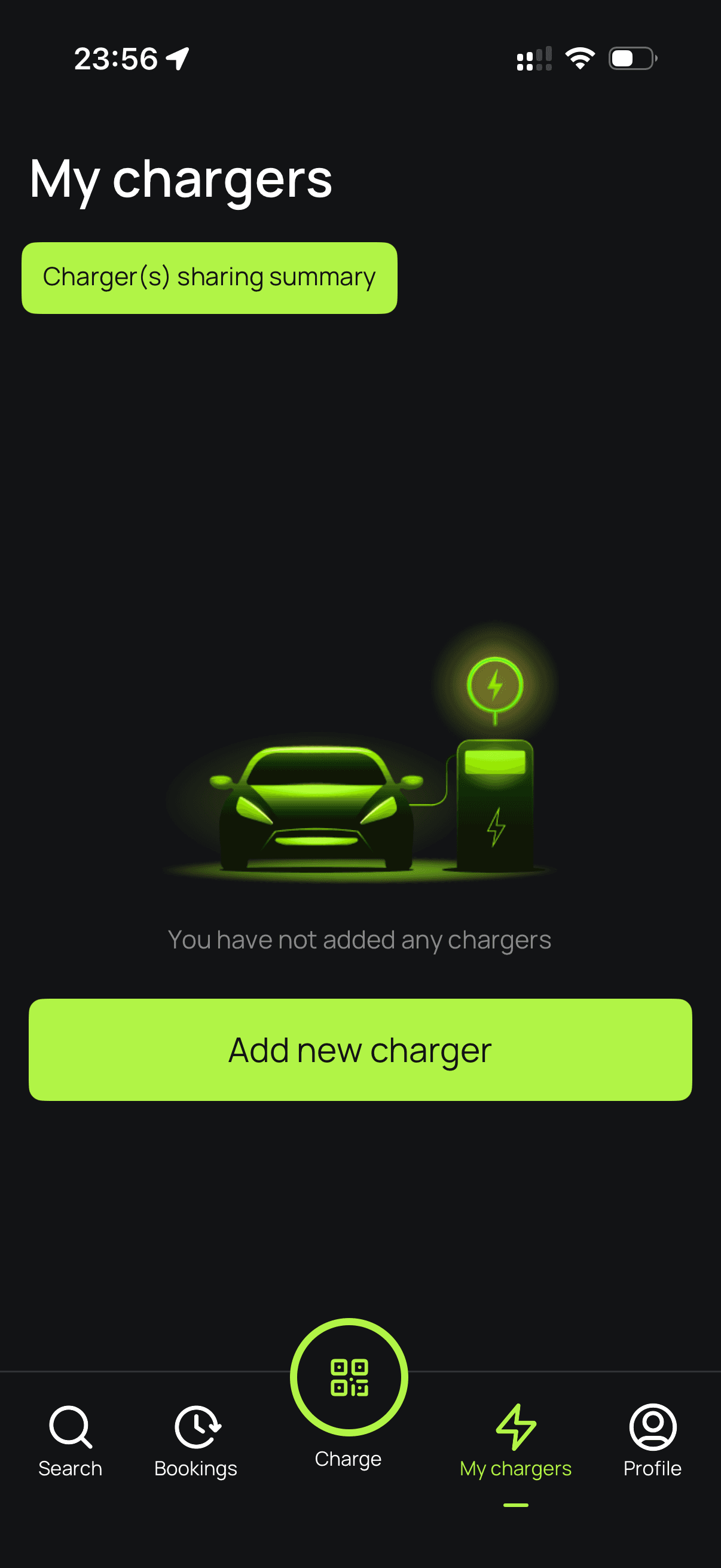
Open Splash Share.
Go to My chargers → Tap "Add new charger"
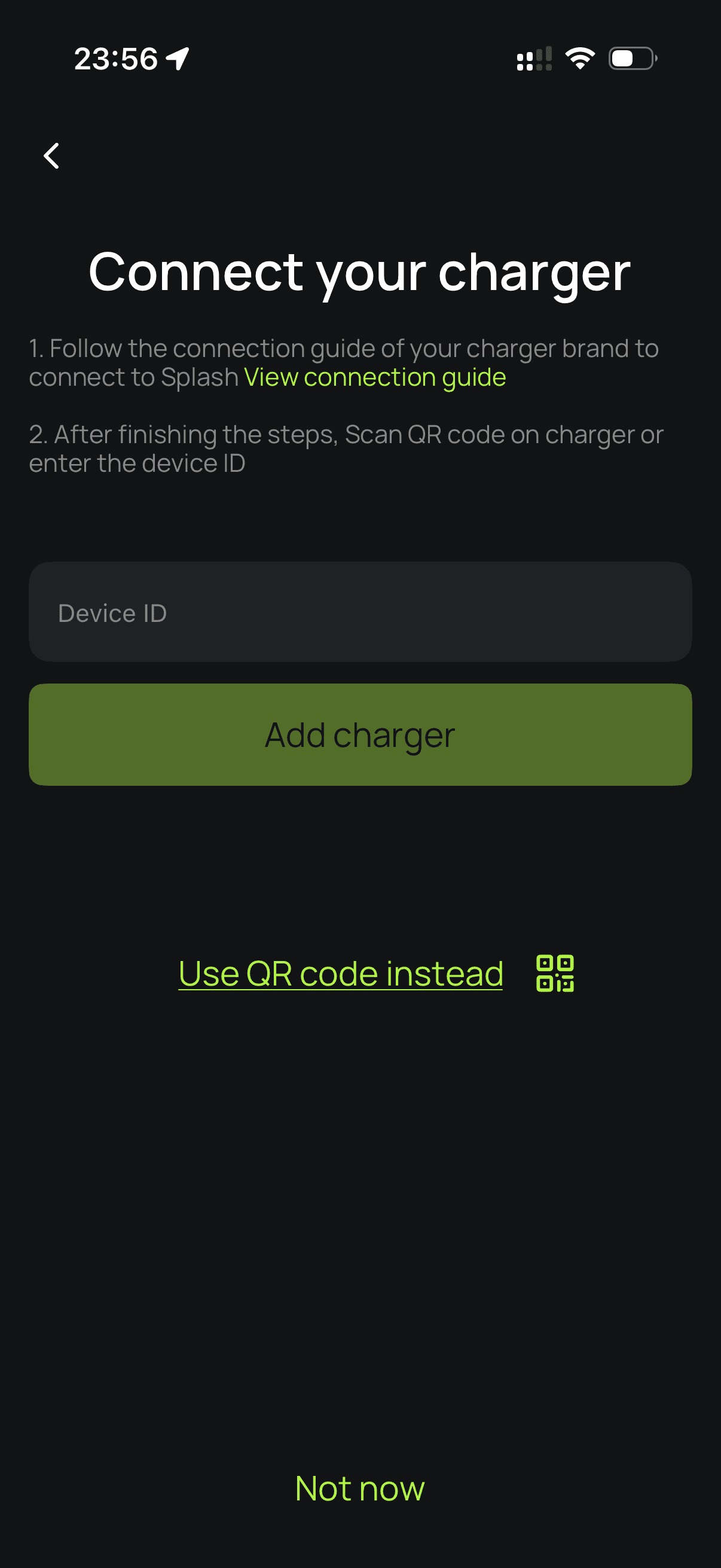
Enter your Station code.
Enter the Station code you used earlier. Do NOT configure a CP password — this will stop the connection from working.
Complete your charger setup.
Follow the instructions to finish setting up your charger. After a minute, it should appear on the map. Until your Splash QR sticker is on the charger, guests can't actually use it — that's how they start a session. Send us a screenshot of your charger on the map via the "Need help?" link below, and we'll get a sticker in the post to you.