Bumblebee EV
Jun 15, 2026
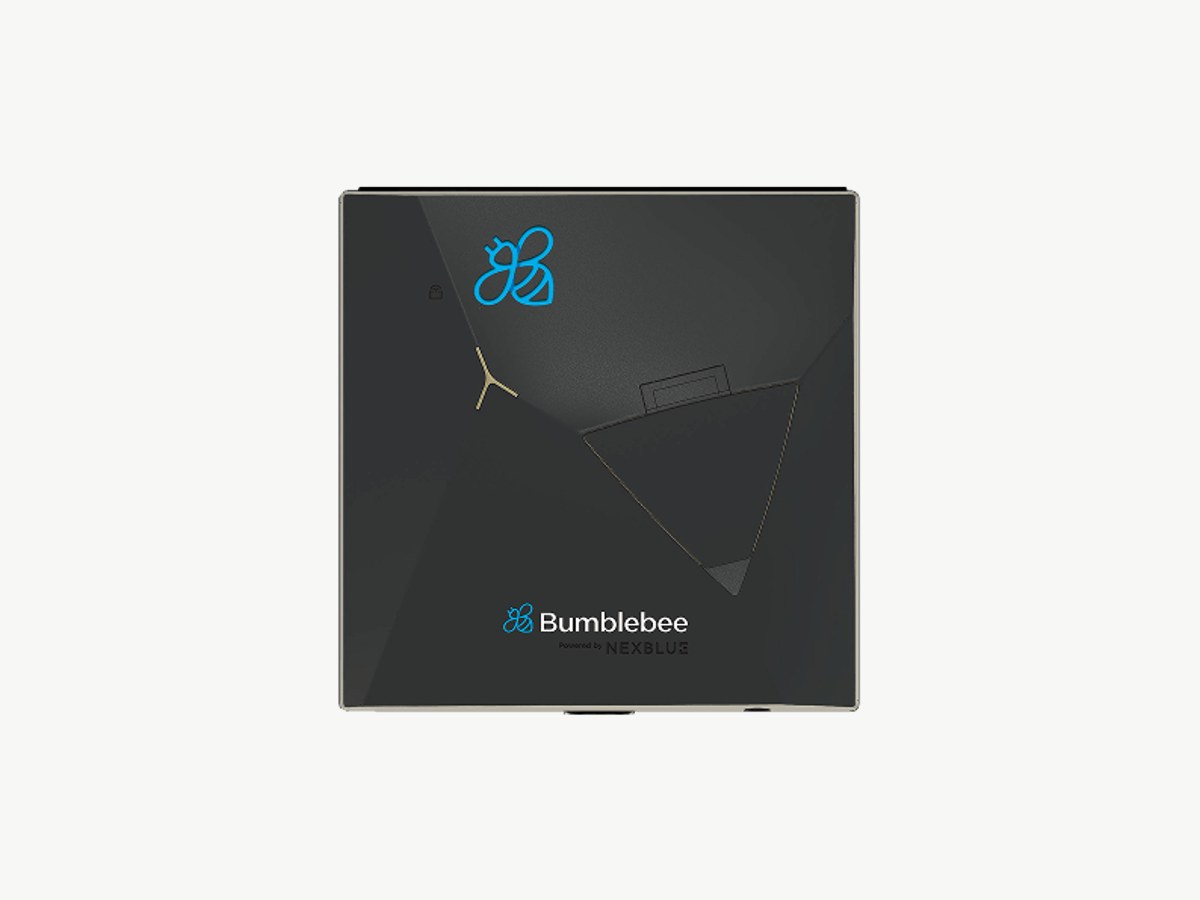
Open the myNexBlue app.
Open the myNexBlue app on your phone (iOS or Android). Make sure your charger is already commissioned and registered in the app. You'll need charger firmware v1.1.2 or later and myNexBlue app v3.2.0 or later for the Operator option to appear. Update both if it's missing.
Tap Locations.
Tap Locations in the bottom menu.
Select your location.
Select the location where your Bumblebee charger is installed.
Open Settings > Operator.
Tap Settings, then tap Operator.
Select Customized OCPP platform.
From the operator options, select 'Customized OCPP platform'.
Enter the Splash OCPP URL.
In the URL field, enter: wss://cpms.splashrenewable.co.uk/. Leave the password field empty.
Save the configuration.
Save. The charger will reconnect to Splash via the new backend.
Open Splash Share.
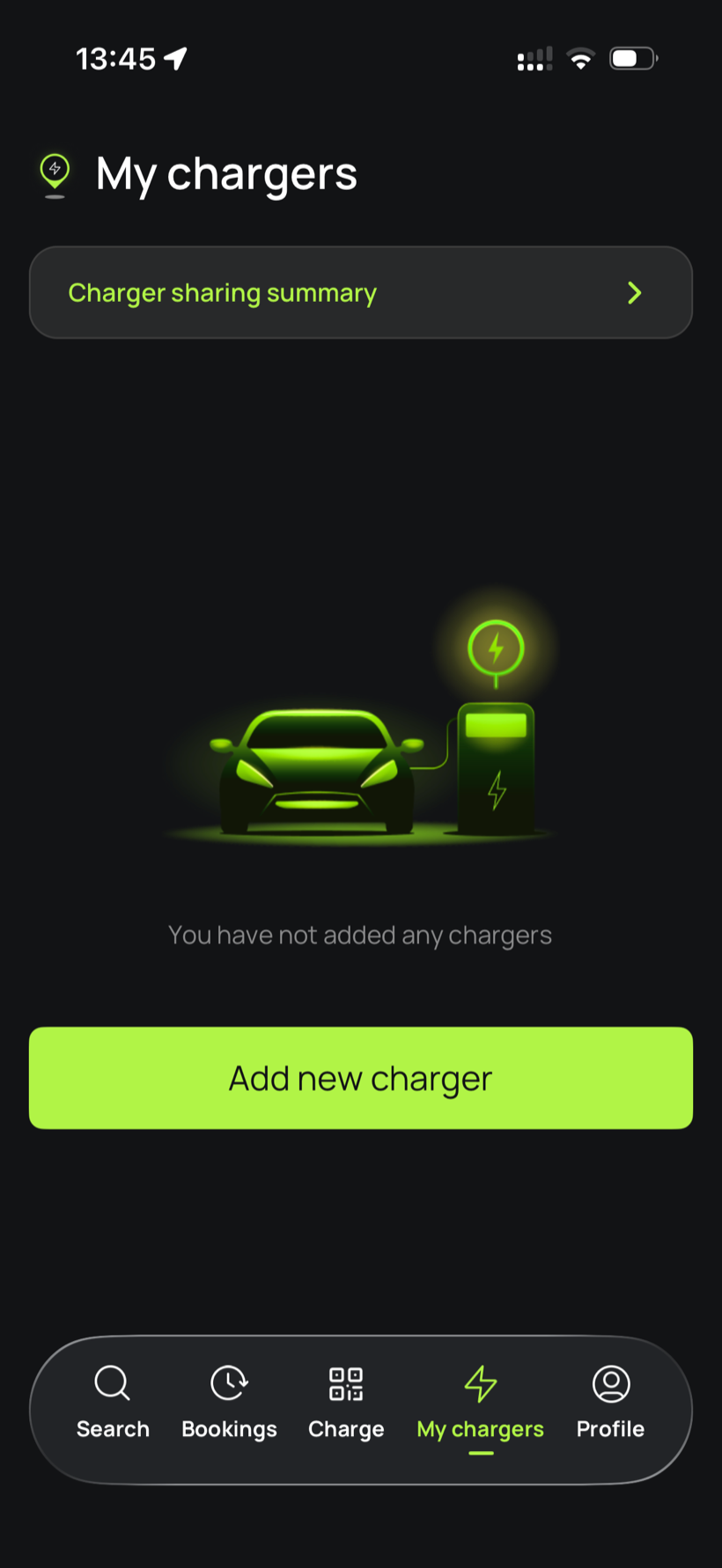
Go to My chargers, then tap Add new charger.
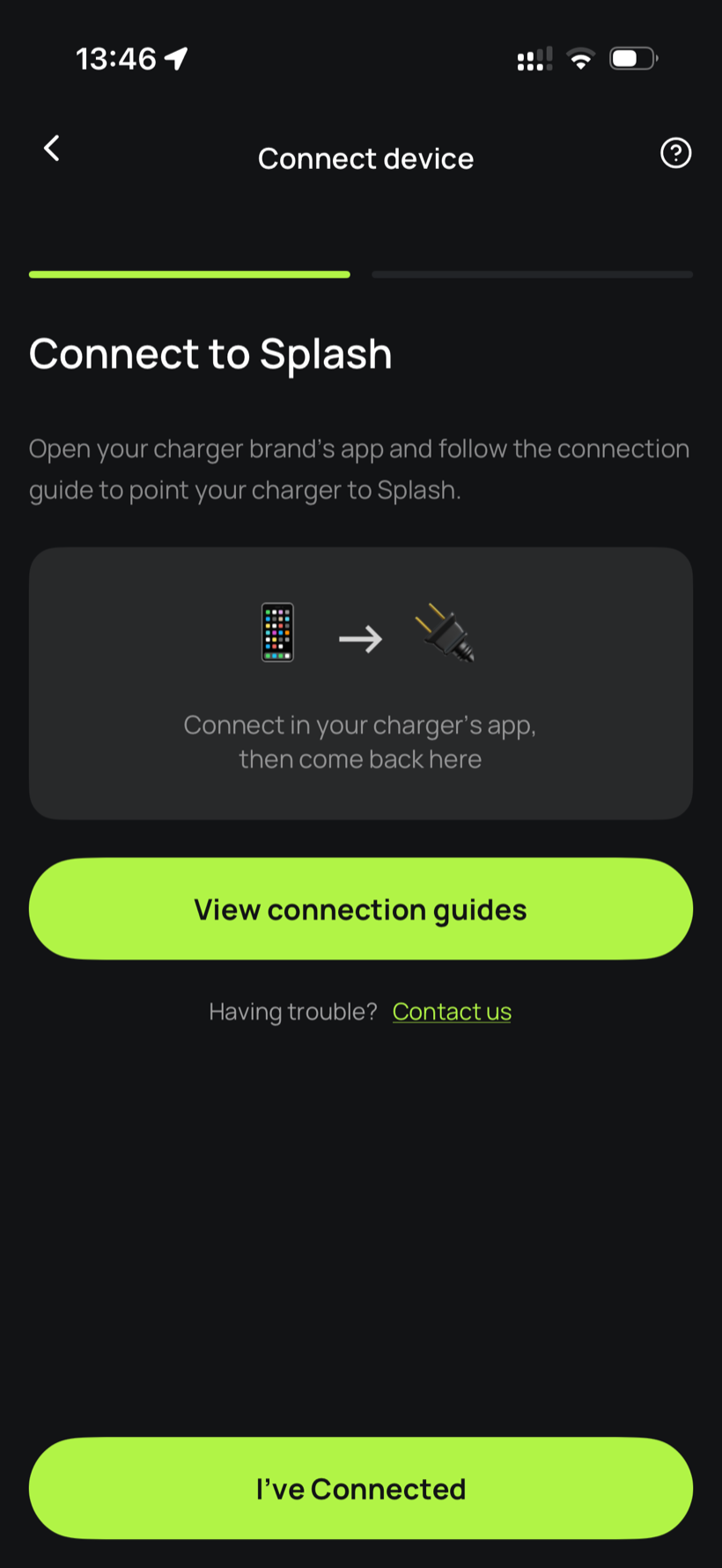
Tell Splash you're connected.
The app first asks you to connect through your charger brand's app. That's what you've just done in the steps above, so tap I've Connected.
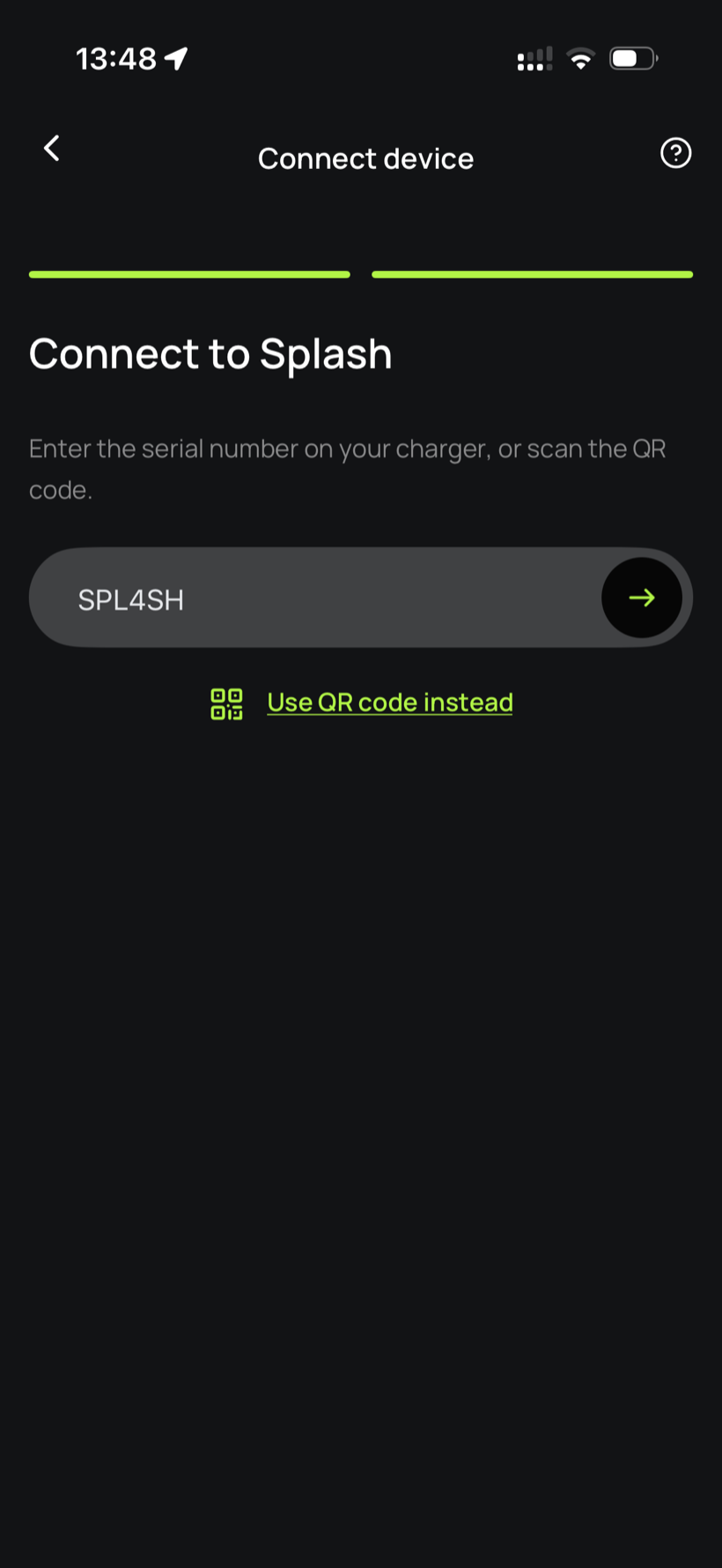
Enter your serial number.
Enter the serial number in the field.
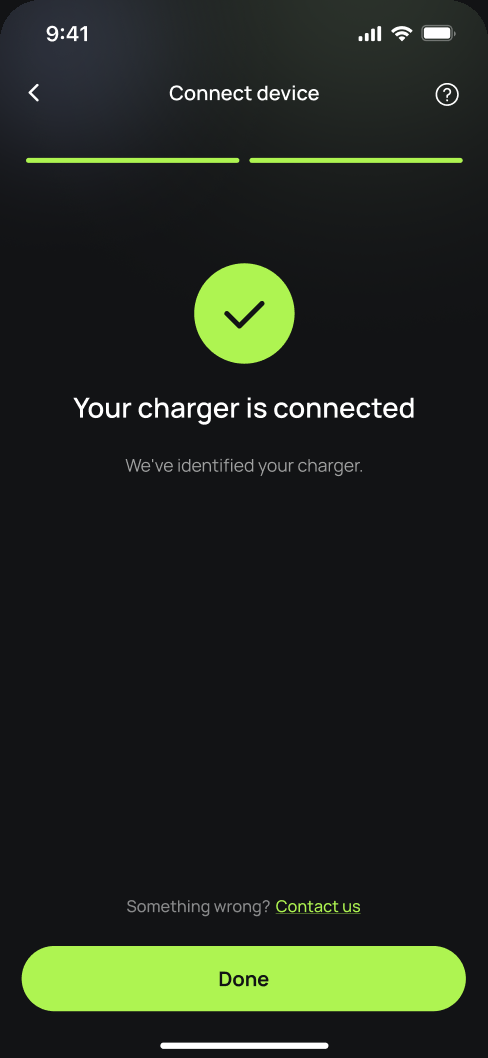
You're connected.
Splash finds your charger and confirms the connection. Tap Done.
Finish setting up in the app.
Your charger isn't live yet. Follow the instructions in the app to add your charger's details and finish the setup. Once you're done we'll know, and we'll post your Splash QR sticker out to you so guests can scan it to start a session.