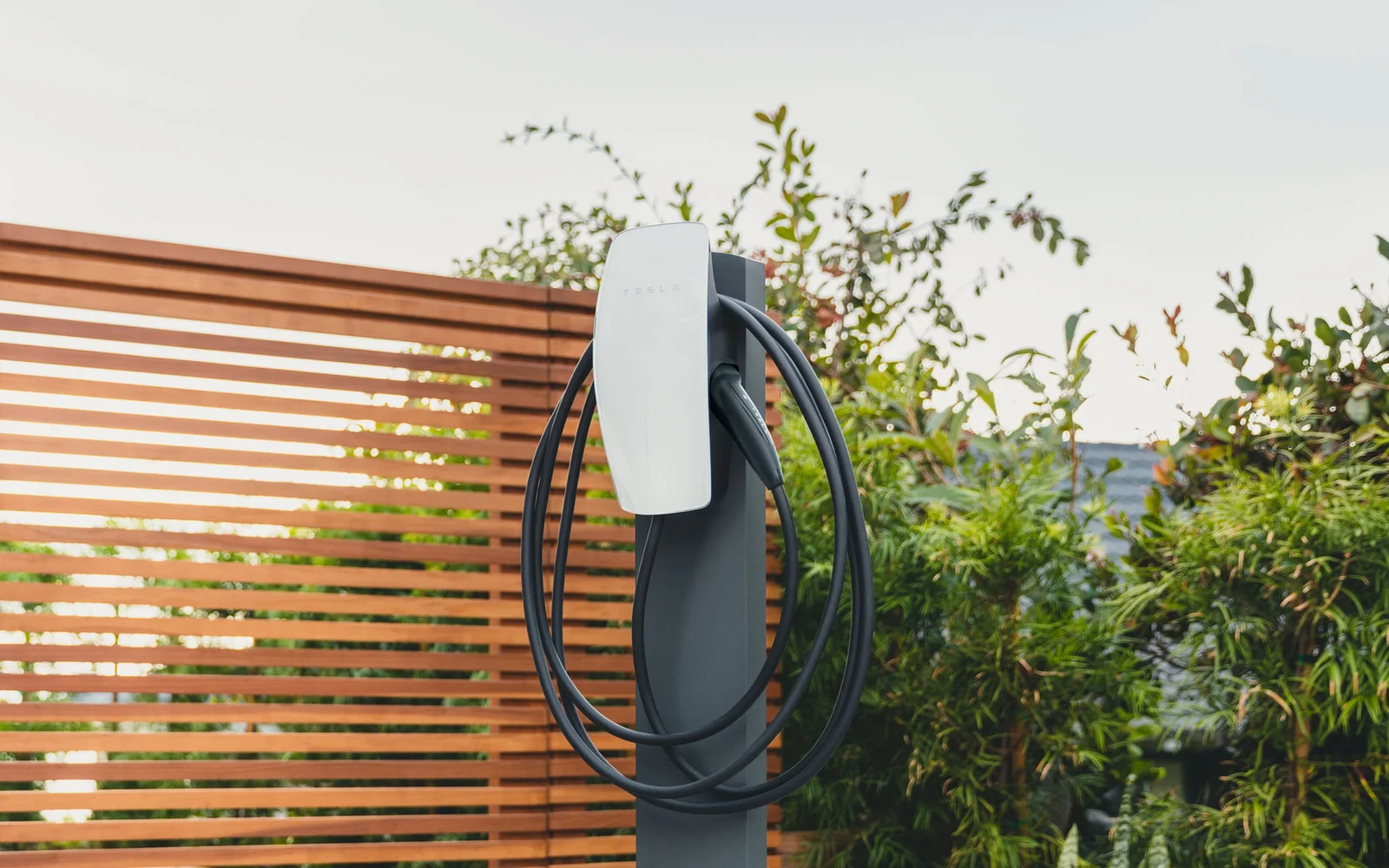

Tesla
Sign in with Tesla
- Models
- Wall Connector (Gen 3)
- Account needed
- Your Tesla account, made in the Tesla app
Step by step
Open Splash Share.
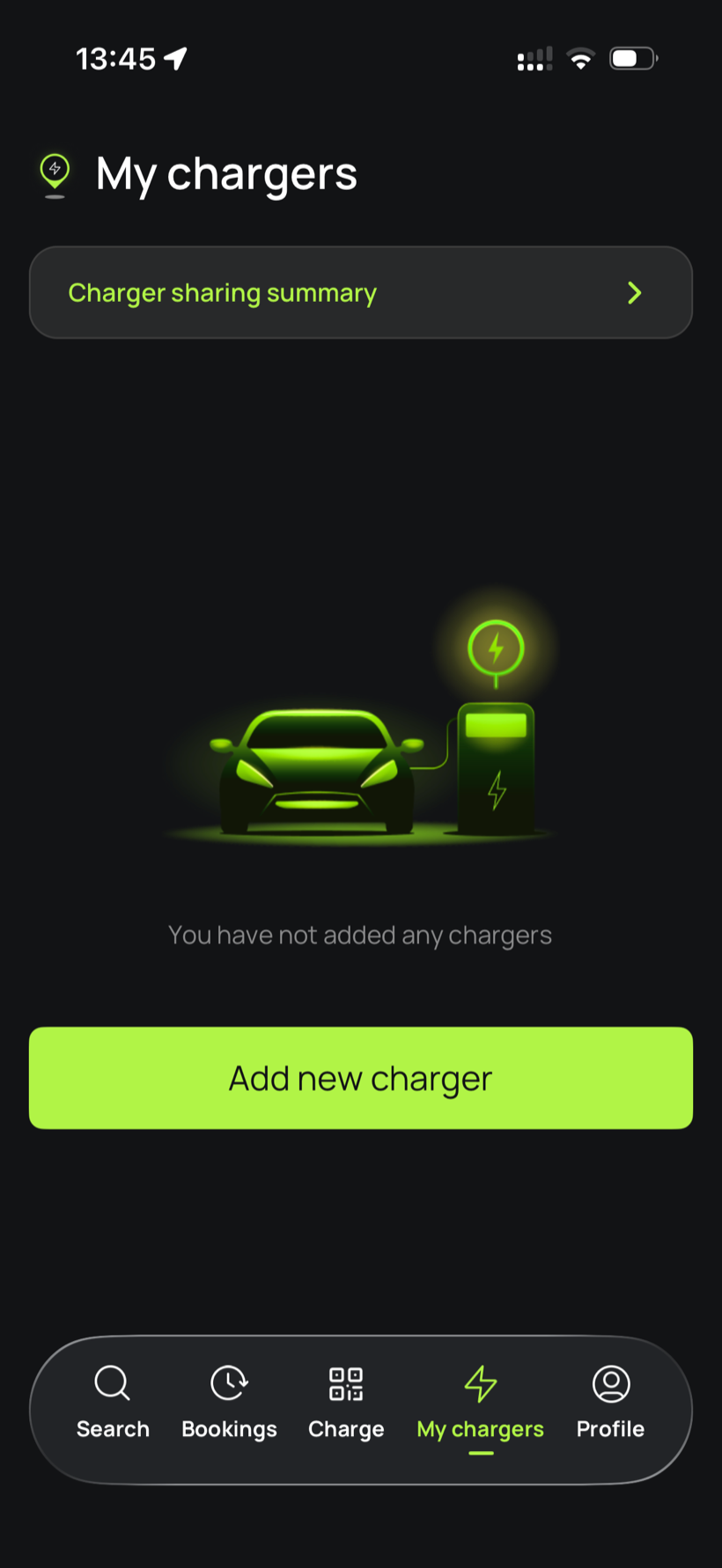
Go to My chargers, then tap Add new charger.
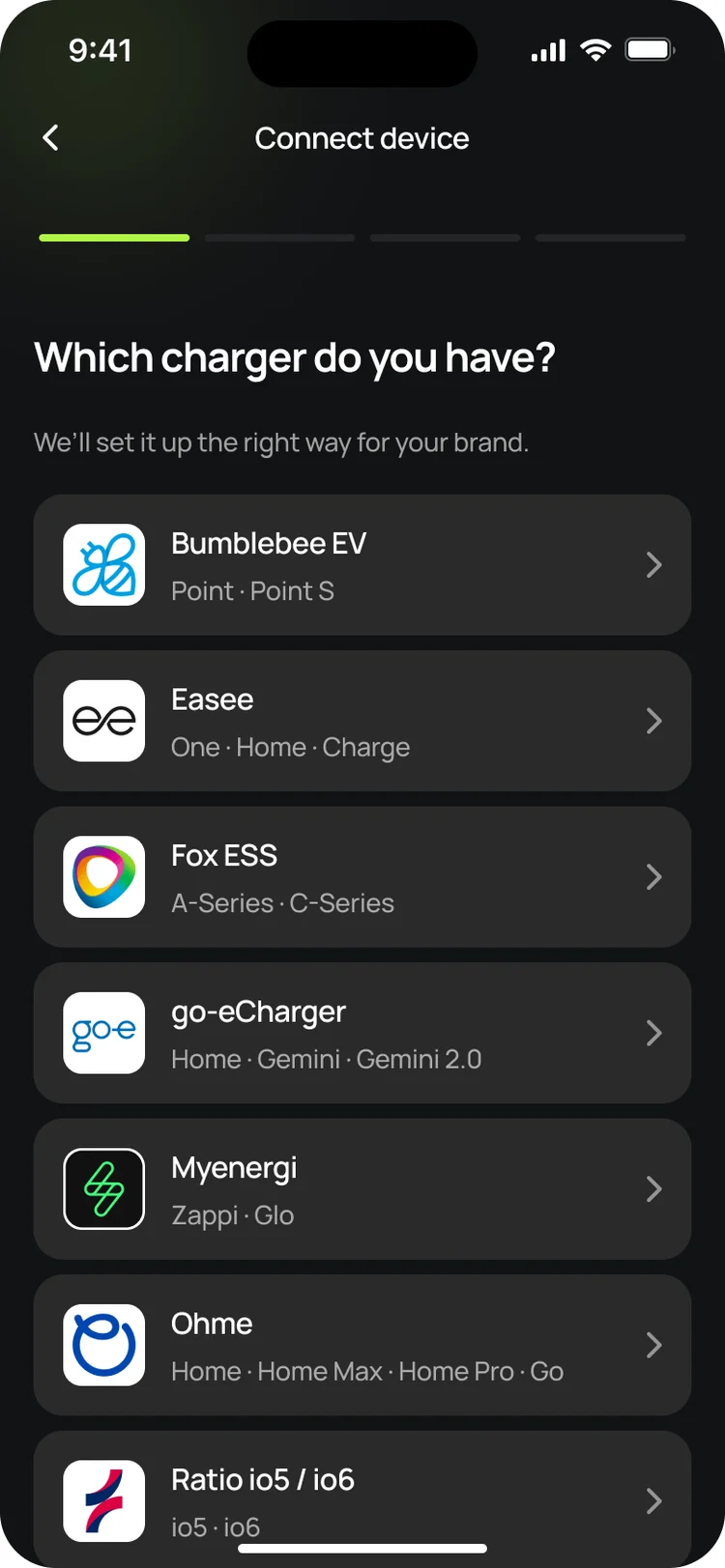
Choose Tesla.
Pick Tesla from the list of charger brands.
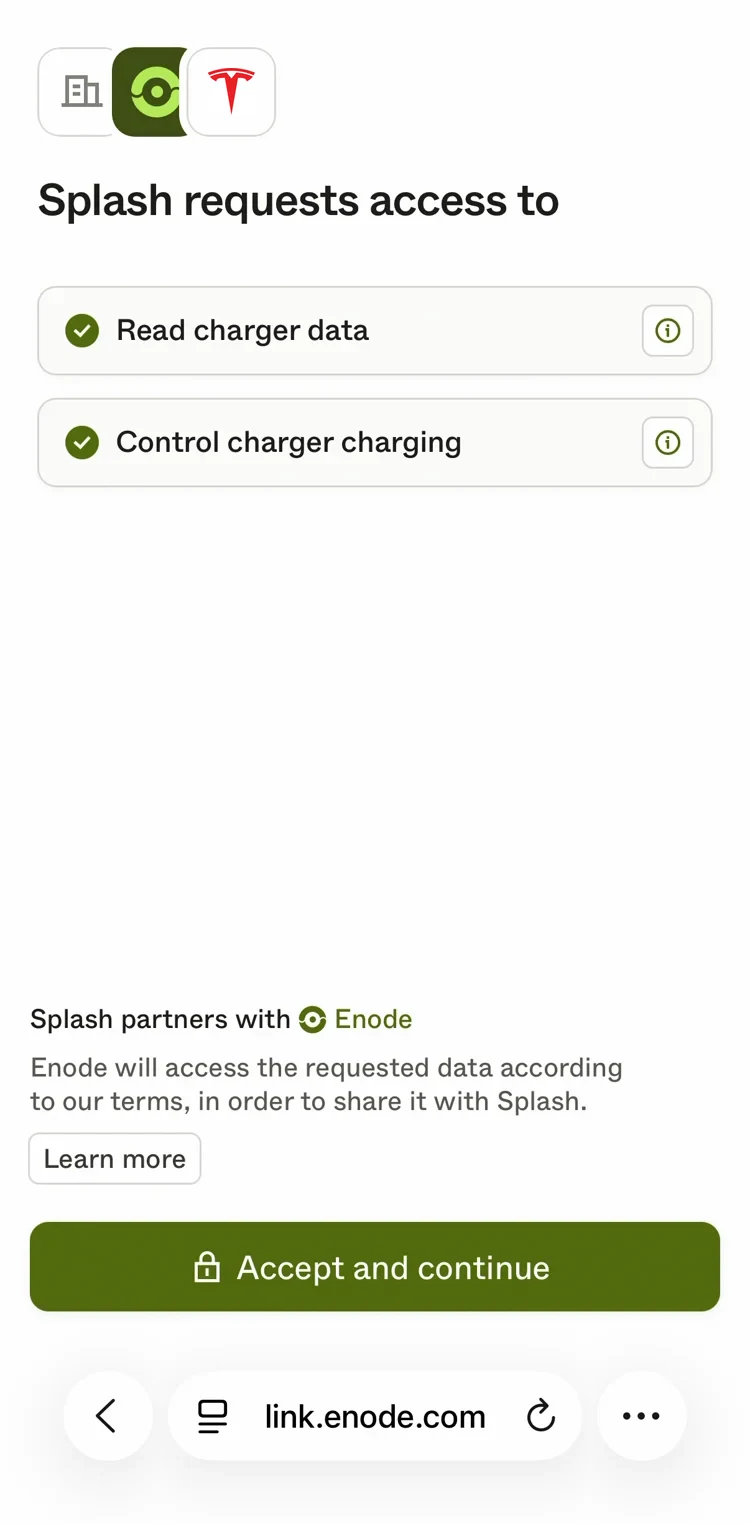
Continue with Enode.
Splash links Tesla chargers through a connection partner, Enode, so the next few screens are theirs. If it asks for your charger brand, pick Tesla again. It shows what Splash is asking for: to read your charger's data and control its charging. Tap Accept and continue.
Sign in to your Tesla account.
Next, sign in with your Tesla account, the one you use in the Tesla app, and approve what it asks. You'll come straight back to finish.
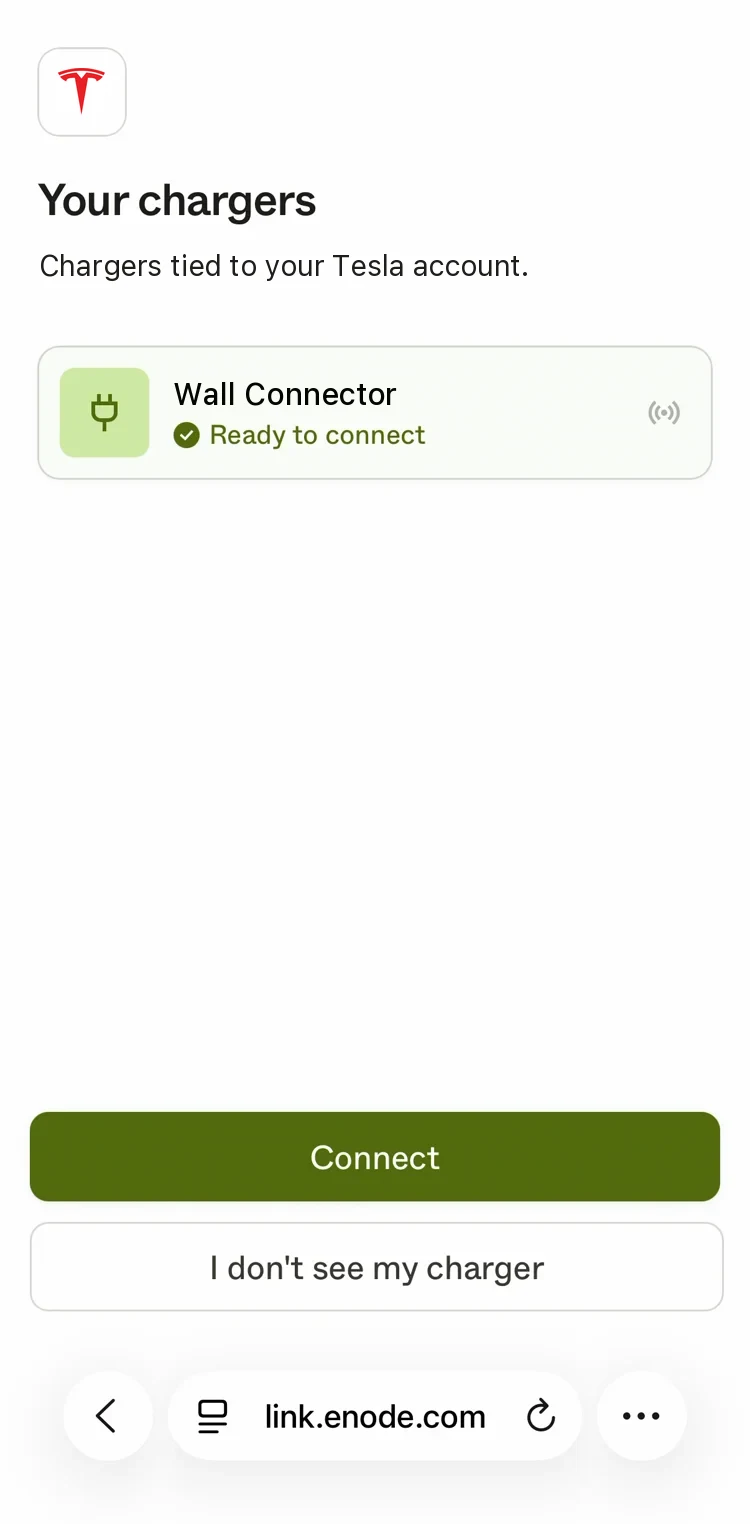
Choose your charger.
You'll see the chargers on your Tesla account. Tap Connect. Can't see yours? Tap I don't see my charger.
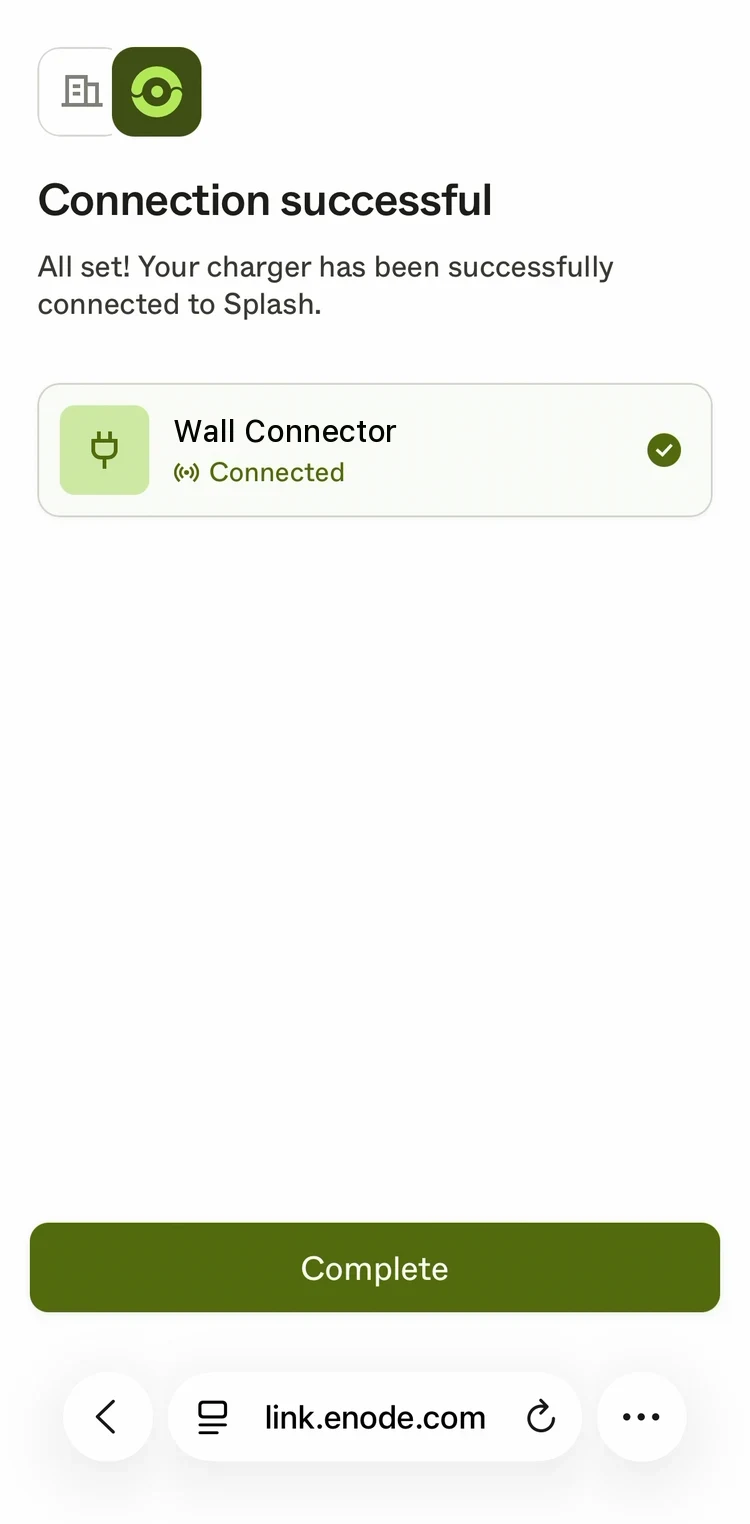
You're connected.
You'll see Connection successful. Tap Complete to go back to Splash.
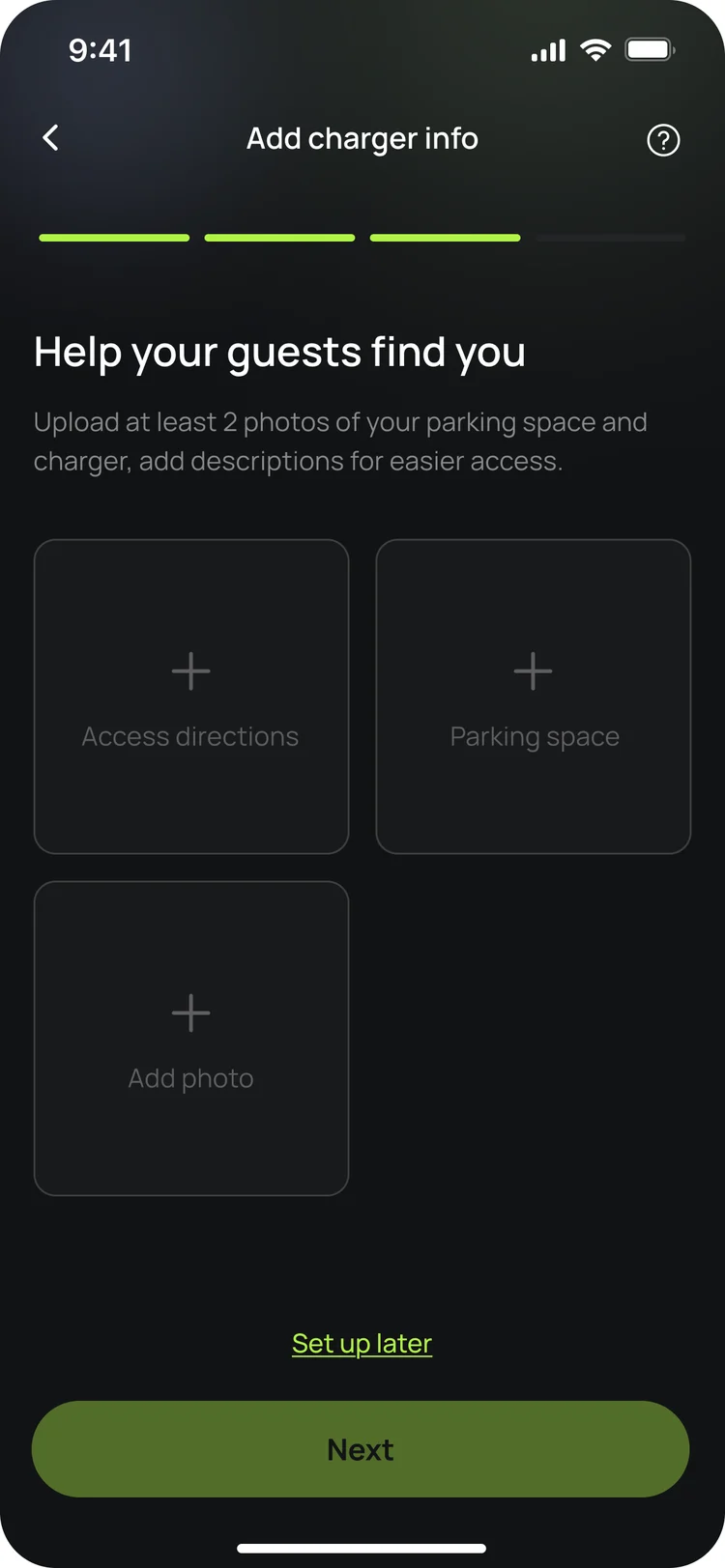
Finish setting up in the app.
Your charger isn't live yet. In the app, add your charger's details, including at least two photos of your parking space and the way in, so guests can find it. Once you're done we'll know, and we'll post your Splash QR sticker out to you so guests can scan it to start a session.
Updated 4 Oct 2026