Wallbox
Jun 15, 2026
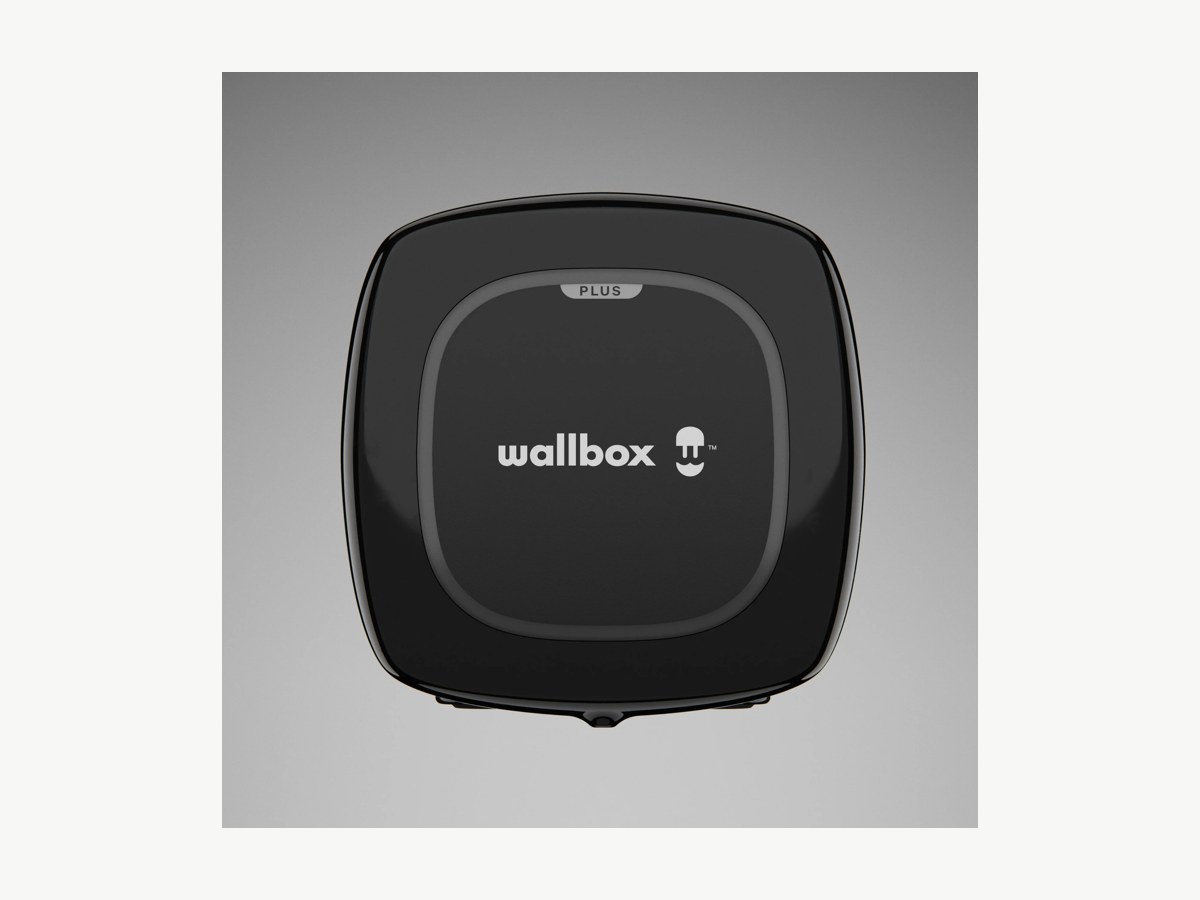
Go to the myWallbox app.
Open the myWallbox app, log in, add your charger and connect it to the internet.
Select the Settings cogwheel.
Tap the Settings cogwheel icon in the top right corner of the charger screen.
Go to External Management > OCPP.
In the settings menu, tap External Management, then select OCPP. Switch on "Enable OCPP".
Copy the Splash URL below.
wss://cpms.splashrenewable.co.uk/
Paste the URL.
In the URL field, paste the Splash URL you copied.
Enter your charge point ID.
In the Charge Point Identity field, enter your charger's serial number. Find your serial number on the label on the side or back of the charger, or in the myWallbox app under your charger's settings.
Enter your password (if configured).
Enter your password in the Password field if one is configured. If not, leave it blank.
Accept Terms & Conditions and click Save.
Accept the Terms & Conditions and click Save. The charger will automatically restart and apply the new OCPP configuration. An OCPP icon will appear on your charger app overview screen.
Open Splash Share.
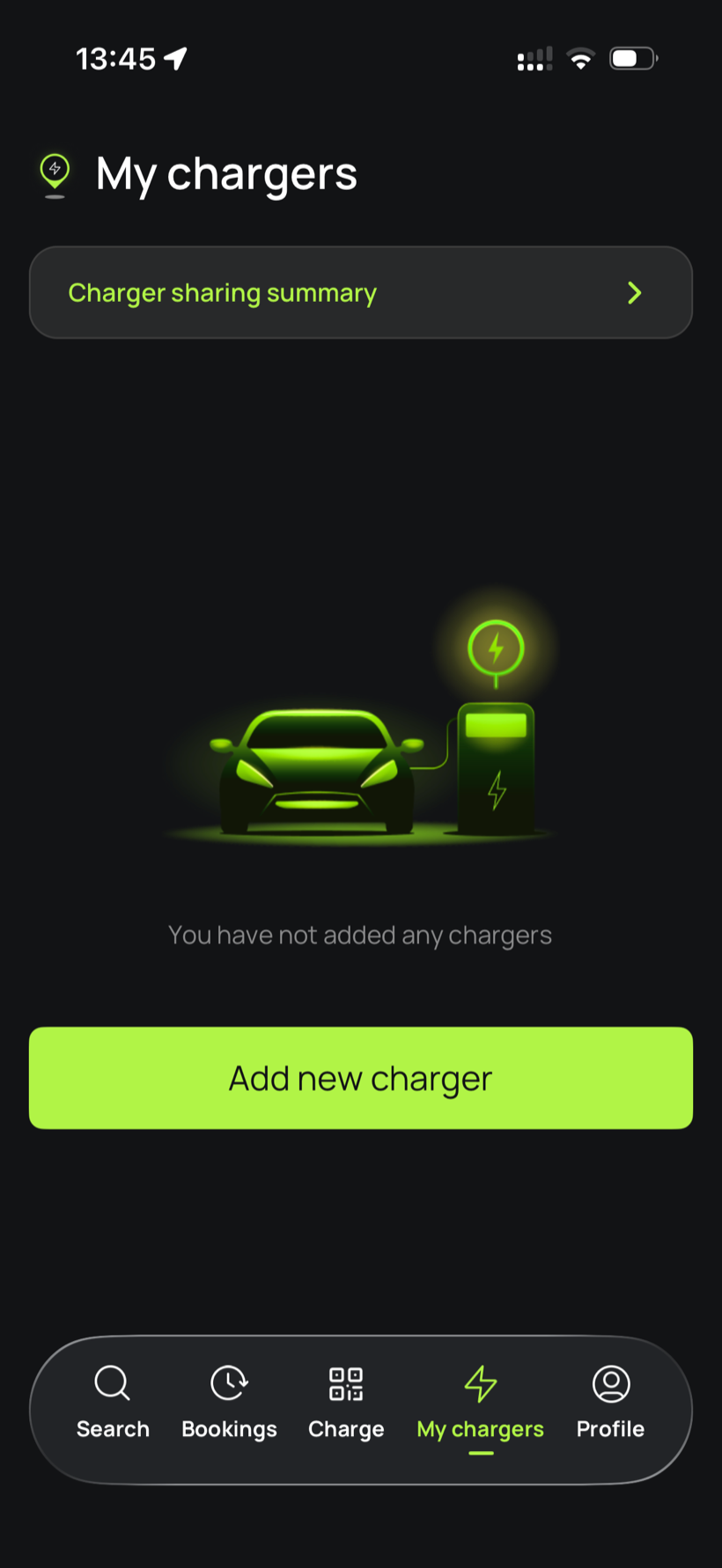
Go to My chargers, then tap Add new charger.
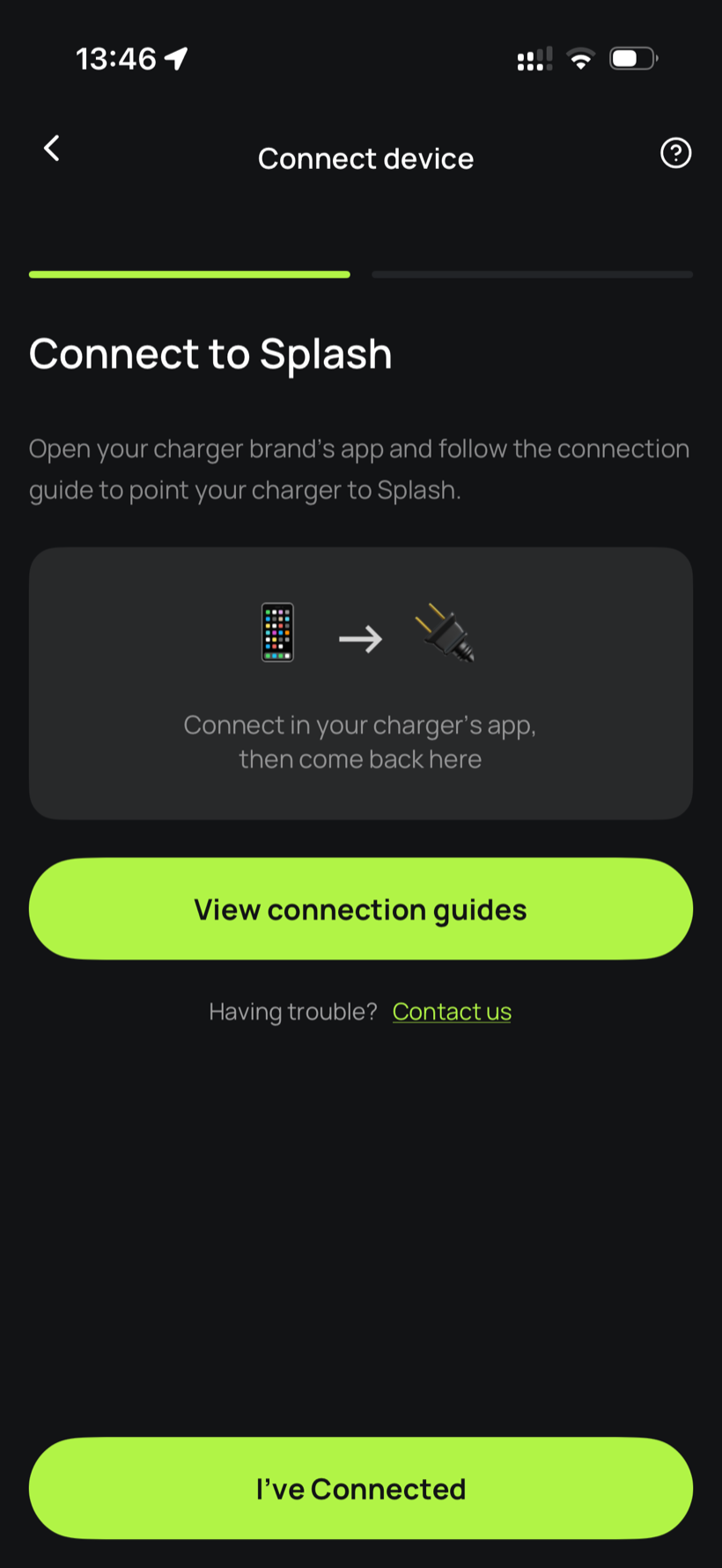
Tell Splash you're connected.
The app first asks you to connect through your charger brand's app. That's what you've just done in the steps above, so tap I've Connected.
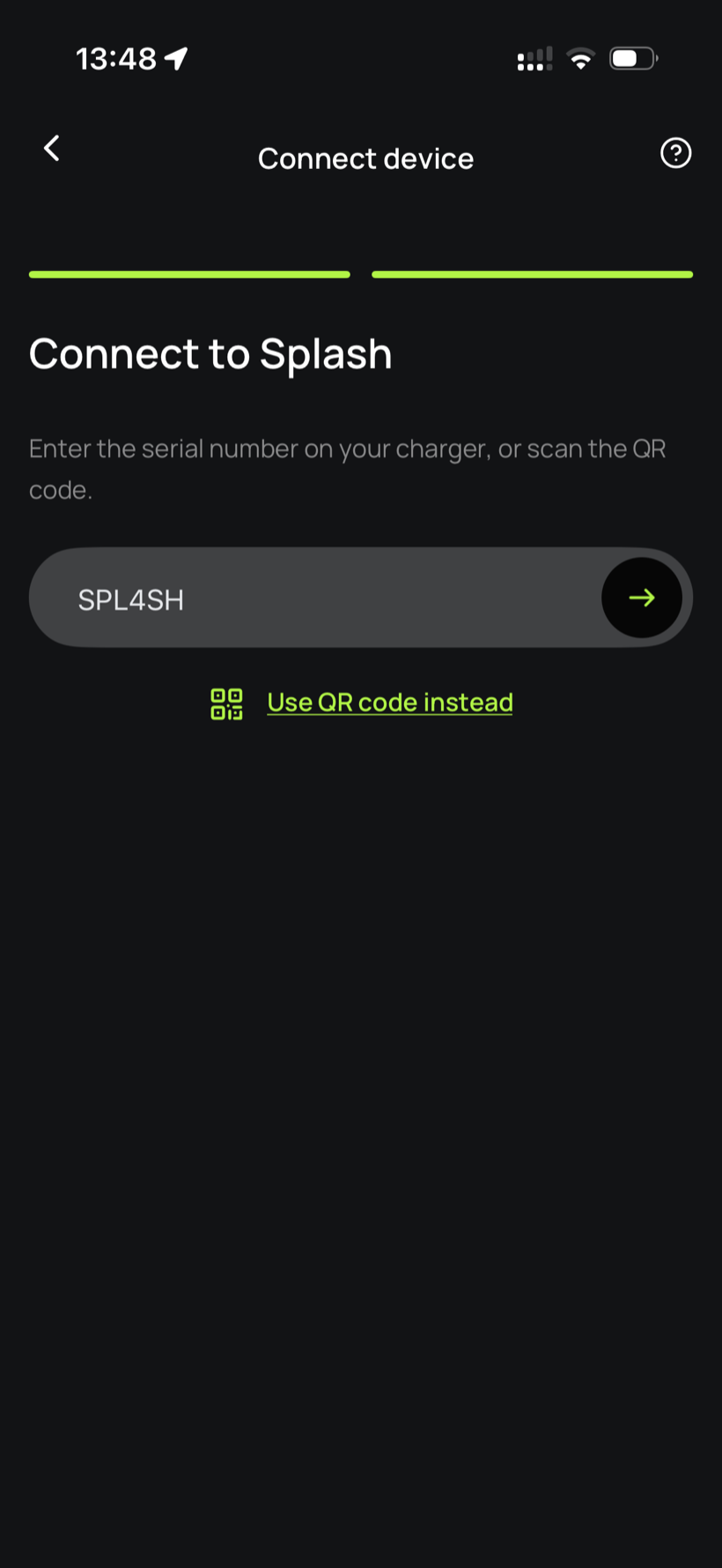
Enter your serial number.
Enter the serial number in the field.
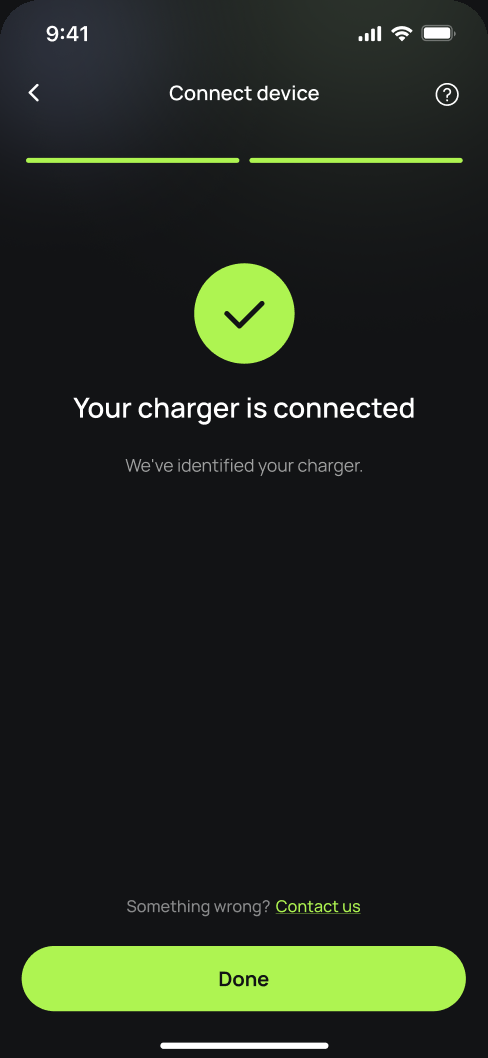
You're connected.
Splash finds your charger and confirms the connection. Tap Done.
Finish setting up in the app.
Your charger isn't live yet. Follow the instructions in the app to add your charger's details and finish the setup. Once you're done we'll know, and we'll post your Splash QR sticker out to you so guests can scan it to start a session.