SyncEV
Jun 15, 2026
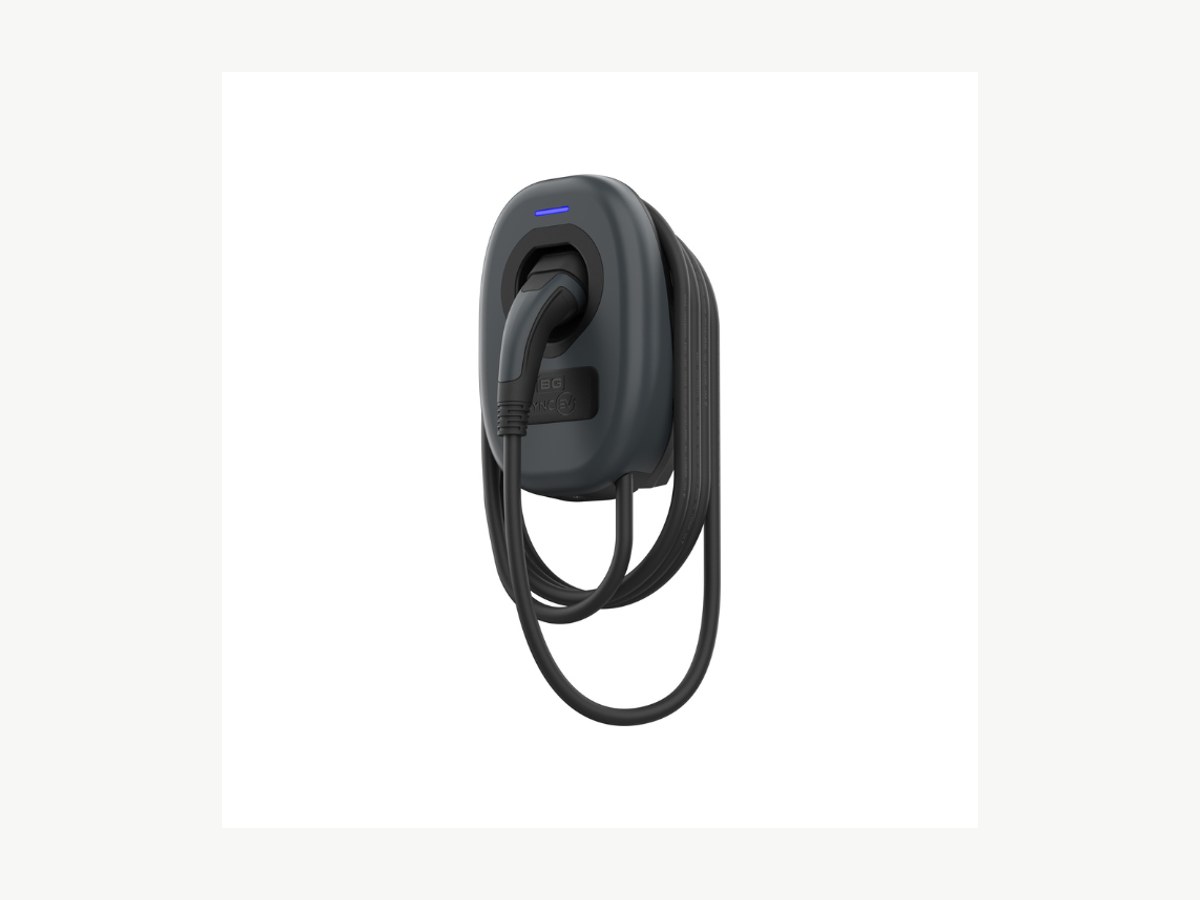
Open the Sync Energy app.
Download and open the Sync Energy app (iOS and Android). The older BG SyncEV Installer app was retired in November 2024, so use Sync Energy. Before you start: turn Bluetooth on, and join your charger's own WiFi hotspot in your phone's WiFi settings (the default password is 12345678). The app needs both to find your charger.
Select your charger's serial number.
Select your charger's serial number from the list on the Bluetooth Devices screen. You can find the Charger SN on the label at the back of the charger, or in the instruction manual.
Connect to your charger via Bluetooth.
Tap on your charger's serial number to connect. Wait for the Bluetooth pairing to complete.
Select your desired connection.
Select your desired connection method: Wi-Fi, LAN, or 4G. Input these details correctly as they are case sensitive.
Scroll down to Server URL and select Manual Entry.
Scroll down to the Server URL section and select Manual Entry to enter a custom OCPP backend URL.
Copy the Splash URL below.
wss://cpms.splashrenewable.co.uk/
Input the Server URL.
Paste the Server URL copied from Splash into the URL field.
Press Set to save.
Press Set to save your configuration. The charger will reboot automatically.
Open Splash Share.
Go to My chargers, then tap Add new charger.
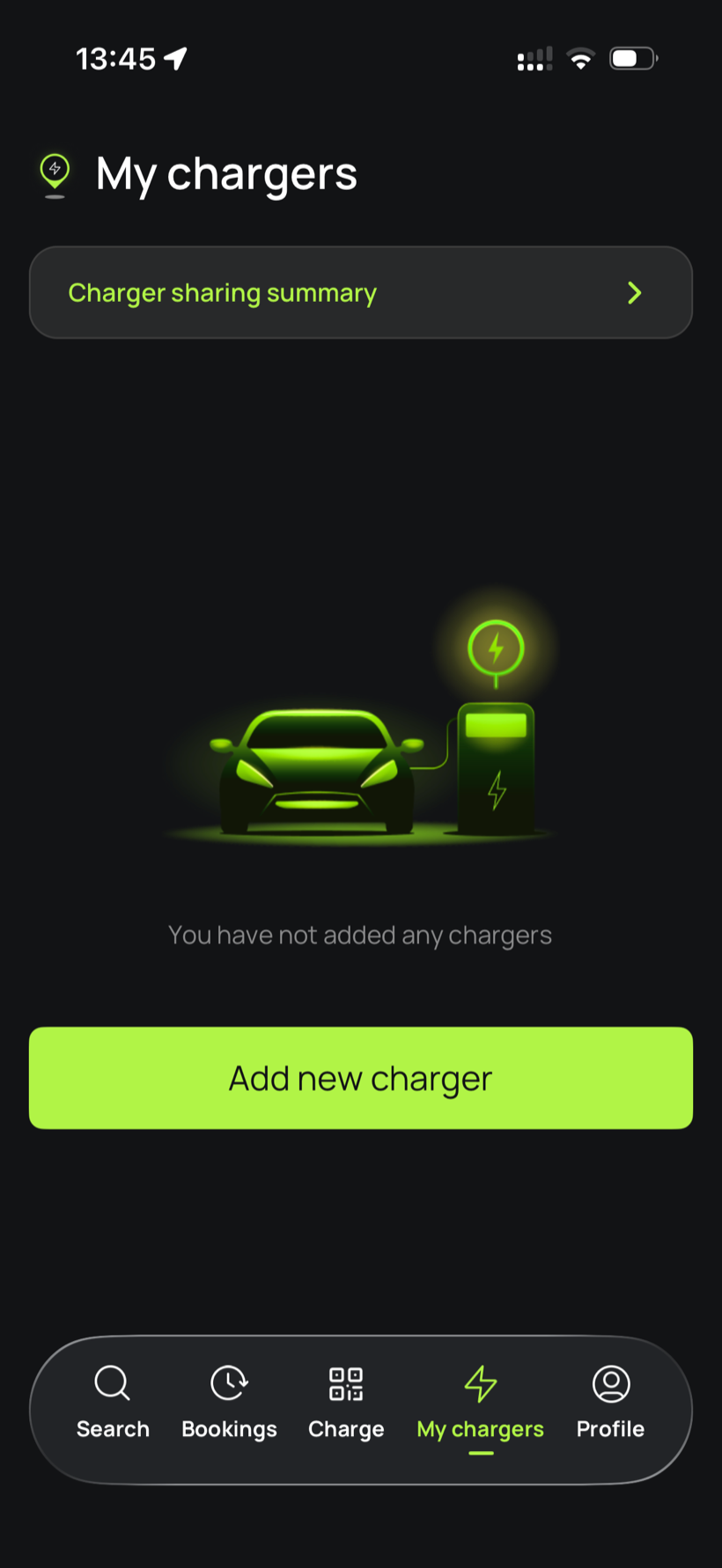
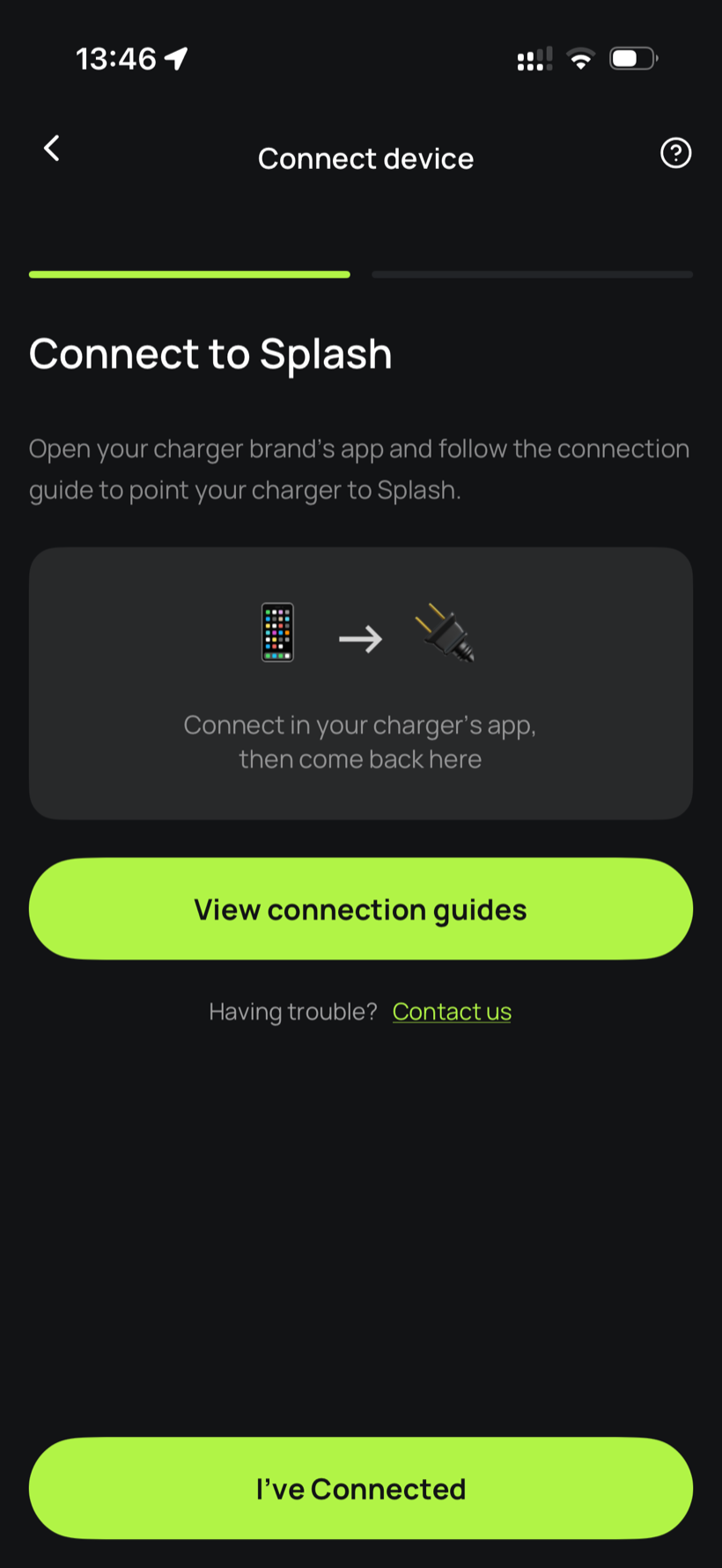
Tell Splash you're connected.
The app first asks you to connect through your charger brand's app. That's what you've just done in the steps above, so tap I've Connected.
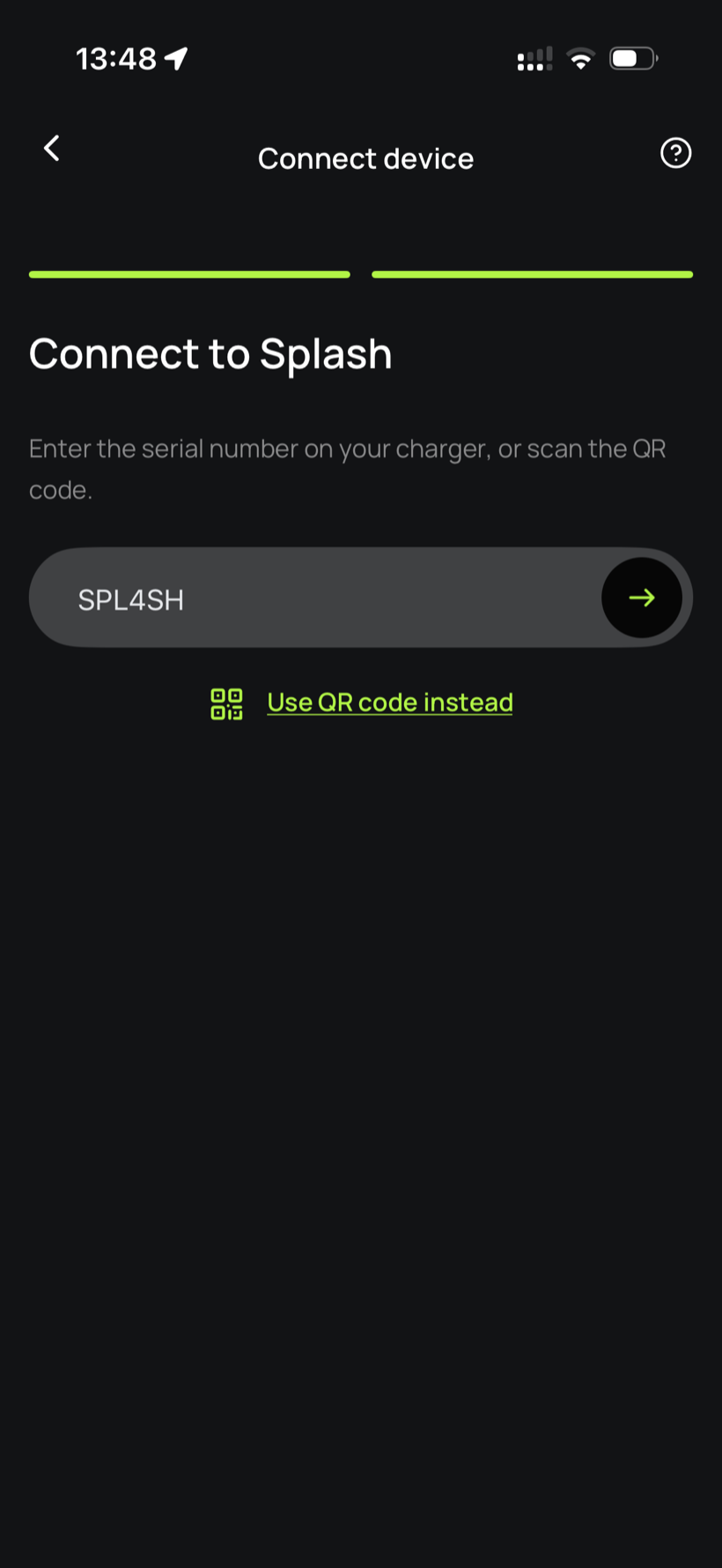
Enter your serial number.
Enter the serial number in the field.
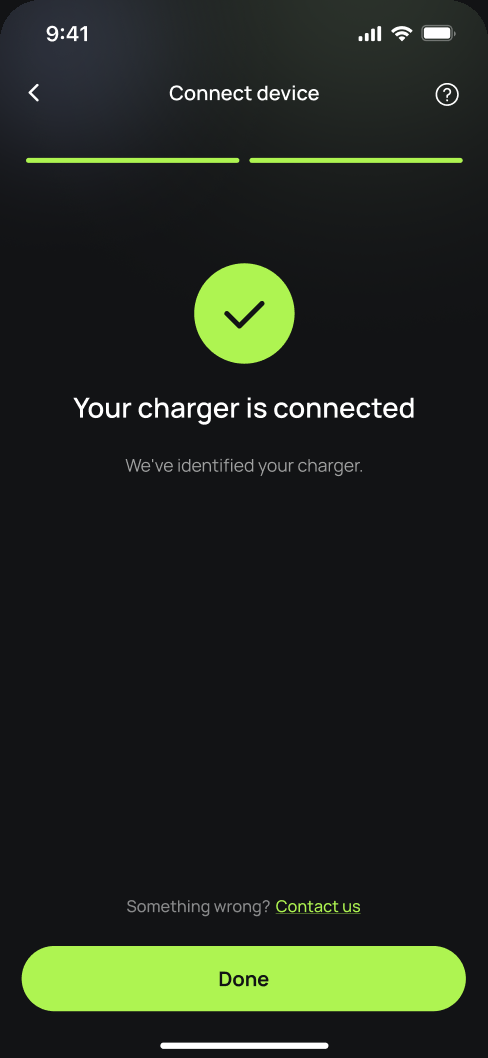
You're connected.
Splash finds your charger and confirms the connection. Tap Done.
Finish setting up in the app.
Your charger isn't live yet. Follow the instructions in the app to add your charger's details and finish the setup. Once you're done we'll know, and we'll post your Splash QR sticker out to you so guests can scan it to start a session.